11:18
Chapter 1: CorelDRAW 2024 Main Screen
Thanatat Suwan
8:34
Chapter 1: CorelDRAW 2020 Main Interface
8:05
Lesson 2: Creating Basic Shapes in CorelDraw
4:41
Chapter 3: Screen Navigation with Zoom and Pan in CorelDraw
8:14
Chapter 4 EP.1 Adding colors to objects in CorelDraw
5:43
Chapter 4 EP.2 Adding Patterns to Objects
4:50
Chapter 5: Setting Dimensions and Editing Object Details in CorelDraw
5:56
บทที่ 6 การเรียงลำดับวัตถุ ใน CorelDraw
5:55
Chapter 7: Moving and Duplicating Objects in CorelDraw
7:44
Chapter 8: Creating and Editing Groups
4:17
Lesson 9: Creating Text in CorelDRAW
8:15
Chapter 10: Creating Lines
9:11
Chapter 11: Creating Text Within Shapes
8:28
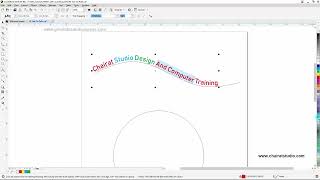
Lesson 12: Creating Text on a Path
4:05
Lesson 13: Importing Image Files into CorelDraw
5:37
Lesson 14: How to Place Images into Shapes
8:17
Chapter 15: Introduction to Rulers and Creating Guidelines
8:47
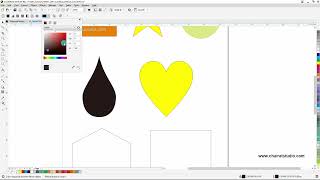
Lesson 16: Using the Shape Tool in CorelDRAW
Lesson 17: Creating Objects with the Common Shapes Tool in CorelDRAW
5:27
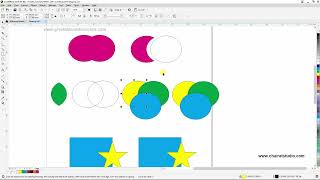
Lesson 18: Editing Objects with the Shaping (Weld) Command in CorelDRAW
5:25
Lesson 19: Creating Drop Shadows for Objects in CorelDraw
11:23
Lesson 20: Business Card Design Exercise in CorelDraw
14:54
Lesson 21: Creating Dimension Lines in CorelDraw
6:34
Lesson 22: How to Convert Text to Outlines for Seamless Use on Other Devices
3:24
Lesson 23: Creating a new page in CorelDraw
7:49
Lesson 24: Using Transform Position to Align Objects in CorelDraw
4:40
Lesson 25: Using Transform Rotate in CorelDraw to Rotate Objects
8:00
Chapter 26: Using Transform Scale and Mirror in CorelDRAW
2:51
Lesson 27: Filling Overlapping Areas with the Smart Fill Tool in CorelDRAW
10:14
Lesson 28: Placing Objects Along a Path Using the Fit Object To Path Command in CorelDraw
5:06
Lesson 29: Using the Blend Tool in CorelDraw
6:38
Lesson 30: Using the Blend Command with Path Constraints